

When you first launch Counter-Strike 2, use a doorframe in Practice mode to tune your mouse sensitivity and crosshair. If you keep overshooting the frame when you stop moving the mouse, lower your sensitivity slightly. If you stop on target and the crosshair disappears against a bright wall, keep your sensitivity and adjust the crosshair outline.
Lower your sensitivity slightly if you keep missing the doorframe
Stand still in Practice mode and pick a doorframe and a crate corner you can see at the same time. Keep your usual grip and move your view between the two points. With your character stationary and your finger off the fire button, you can see exactly where your hand stops.
- Record your starting settings. Open Keyboard / Mouse in the game settings and write down your mouse sensitivity. If your mouse has a DPI switch, record the active setting too. DPI affects how much movement the mouse reports when you move it a given distance.
- Move back and forth and stop on each point. Look from the doorframe to the crate, then back again. Notice whether you keep overshooting and pulling back, or stopping short and giving the mouse another push. Try both directions a few times to spot a pattern.
- Adjust your in-game sensitivity. Lower it slightly if you keep overshooting, or raise it if you keep stopping short. Keep your mouse DPI and character position fixed, and repeat the test. Use the value that requires fewer corrections.
A setting that feels comfortable between two nearby points may feel different on a wider turn. From the same spot, turn toward a doorway outside your view. If small movements feel fine but your mouse keeps hitting the keyboard when you turn farther, factor in your desk space. If you still run out of room starting from the center of the mousepad, raise the sensitivity slightly and see whether you can still stop reliably on the two close targets.
How to transfer your sensitivity to a new mouse or game
When changing mice within CS2, start with eDPI, or mouse DPI multiplied by in-game sensitivity. At 800 DPI and 1.5 sensitivity, your eDPI is 1,200. At 1,600 DPI, 0.75 produces the same value. With the other input settings held constant, this matches the amount your view turns for a given distance of mouse movement. Since the mouse may have a different shape or weight, test how easily you can stop on target in a practice map.
If you're coming from another FPS, measure how many centimeters you move your mouse to turn 360 degrees. In the old game, start with a landmark centered on screen while unzoomed, then measure the distance it takes to turn all the way around to it. Move your mouse the same distance in CS2 without zooming. If you stop short of the landmark, raise your sensitivity slightly. If you go past it, lower the sensitivity. This gives you a familiar starting point even when the games use different sensitivity scales.
Try an outline first when your crosshair disappears against a wall
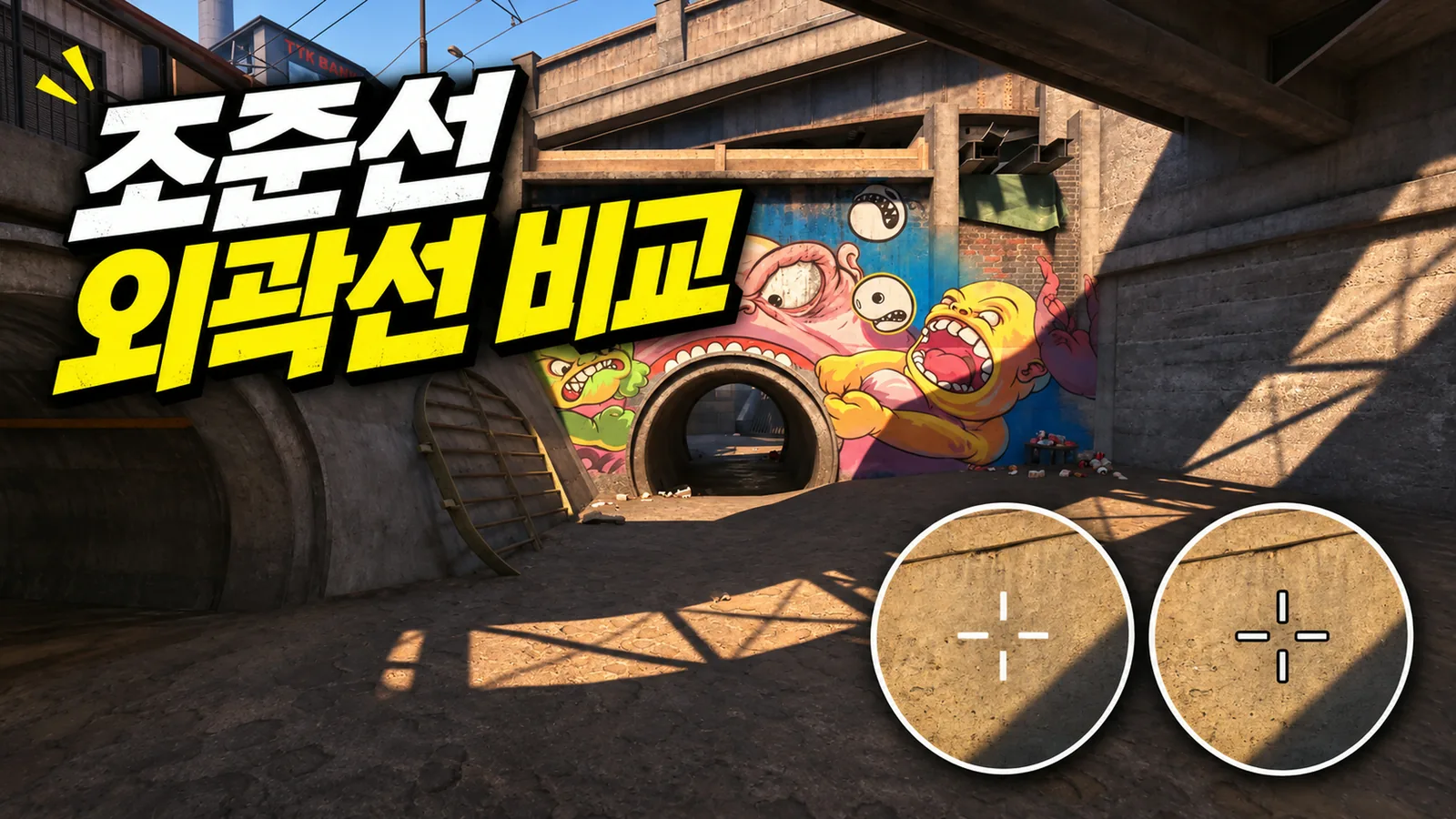
You can change your crosshair in the Crosshair / Scopes tab, added in the September 2026 update. In a practice map, aim the same crosshair at a bright wall, a dark doorway, and a busy pattern. See whether the crosshair looks too small everywhere or whether its edges vanish against one particular background.
Suppose your white crosshair is easy to see in a dark doorway but disappears over white tiles. Turn on a dark outline without changing the length or thickness. The outline creates a visible edge between the white lines and the tiles. If the full border covers too much detail, compare it with Half Outline. It draws the border along the top and left edges, so you can check how much you can see through it from the same spot.
| What happens in Practice mode | First setting to try | What to check from the same spot |
|---|---|---|
| The white lines disappear against a bright wall | Dark outline | Check whether you can still see the tips as you move from shade into sunlight. |
| The lines look too thin against every background | Crosshair thickness | Check whether you can spot the lines at a glance on a distant doorframe. |
| The crosshair covers a small door handle when you center it | Center dot or crosshair gap | Turn off the center dot or widen the gap and see whether you can make out the handle. |
Point your crosshair at the floor and move your character to compare crosshair styles. A dynamic crosshair spreads while you move and closes again afterward. Pick a static style if you want the gap to stay the same while moving.
Follow Recoil is a separate option. Turning it on makes the whole crosshair move away from the center of the screen as you fire in the game. A dynamic crosshair instead changes the spacing between its lines when you move. Keep your finger off the fire button during the sensitivity test so recoil stays out of the comparison.
Recreate outdated crosshair codes in the current settings tab
When you find a shape you like, copy its code from Share or Import. Importing a new code replaces your current crosshair, so save your code first. The update that went live October 1, 2026, Korea Standard Time (KST, UTC+9), added outline colors and changed the share code format. Codes from older guides can be rejected even when pasted correctly.
Use the guide’s screenshot as a reference for the visible features. Start with the shape, such as a cross or dot, then pick a color and set the center gap. Check whether the crosshair needs an outline against a bright surface. Crosshair length and thickness are now set in pixels, and the game scales those pixel counts proportionally if you change your display resolution.
Settings to check when the game stutters or gear is missing from the buy menu
If you can stop on the doorframe but the whole scene seems to skip, pause the sensitivity test. In Video settings, make sure the game uses the right monitor and resolution. In Windows 11, open Settings → System → Display → Advanced display to see the active refresh rate. If you use two monitors, check the monitor selected at the top of that screen.
At 144 Hz, the monitor can refresh 144 times per second. FPS measures how many frames the game draws per second. If only certain areas still stutter at 144 Hz, use the in-game telemetry to check FPS and frame time. The millisecond reading beside FPS shows the slowest recent frame. That can help you find a single slow frame even when average FPS is high.
If the game only feels slow to respond online, check ping, the round-trip time to the server in milliseconds. Max Acceptable Matchmaking Ping limits which official servers matchmaking looks for. You cannot choose a country there. If no nearby official server meets that setting, the game may choose the next closest server with higher latency.
If the buy menu is missing gear you expected, open the Loadout in the lobby. Terrorists (T) and Counter-Terrorists (CT) have separate loadouts. Each side has one starting pistol slot, four other pistol slots, five mid-tier slots, and five rifle slots. If you edit only one side, the other side will still have its own choices when you switch. For your first day, check that any gear you intend to practice with is in the right side’s loadout.
You’re ready for your first match when you can stop your mouse on the doorframe and still see the crosshair when you aim down at a patch of sunlit floor. Save your DPI, in-game sensitivity, and crosshair code together so you can return to those settings later.
