

If setting up WoW Forever feels daunting, an addon pack's automatic setup is a reasonable starting point. Immediately afterward, though, check mouseover casting, nameplate size and your screen layout. What matters most is casting on the intended target and reading essential information in time, rather than simply making the screen look tidy.
Often called a one-click setup, this feature applies a collection of settings prepared by the pack's creator. The automatic setup discussed here belongs to a Forever addon pack; it is not an official Blizzard patch. Distinguishing the game's own options from addon features makes it much easier to identify anything that feels uncomfortable afterward.
Start by choosing what to apply
Automatic setup saves you the time of finding every option individually. It can apply fonts, guidance displays and screen layouts together, including settings that are hard to locate when you are new. However, another player's preferred layout may not suit your monitor or your habits.
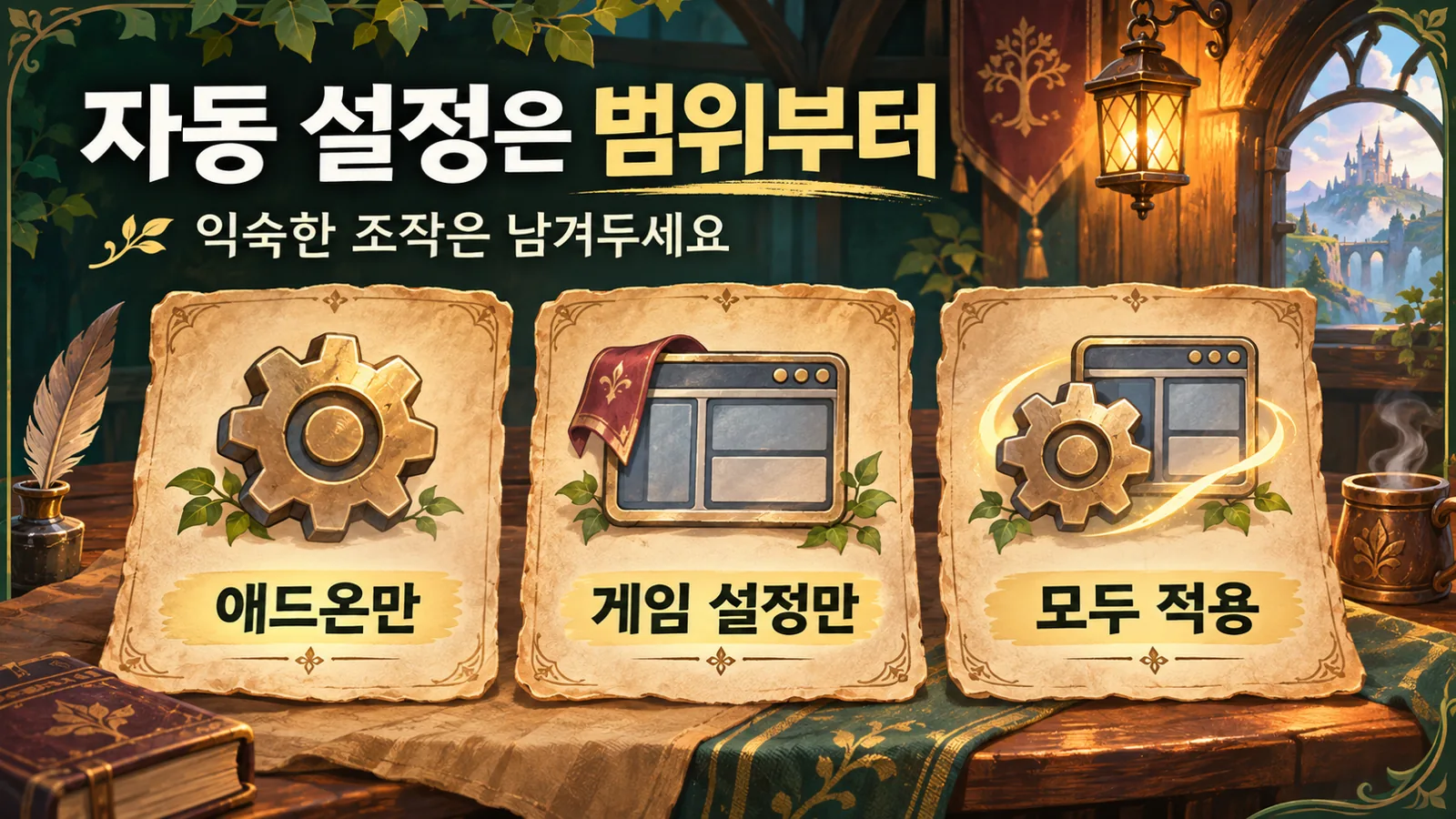
There are three broad scopes to choose from. Menu wording and the exact contents can vary between releases, but the criteria for choosing are straightforward.
| Scope | Consider this when |
|---|---|
| Apply addon settings only | You want the addon's guidance and displays while keeping existing game settings. |
| Apply game settings only | You want recommended game options while preserving your personal addon settings. |
| Apply everything | You have no established configuration and want to start from the complete recommended setup. |
Returning players who already have their keybinds and layout configured should consider applying addon settings alone before applying everything. If you are starting fresh and unsure what to choose, applying everything can give you a baseline to adjust afterward.
The important point is that Apply everything is a starting point, not a finish button. Automatic setup makes many choices for you, but it cannot judge whether they suit your hands. After applying it, test movement, target selection and a few frequently used abilities somewhere safe.
Check that installation and update files support Forever
When managing addons through CurseForge, first check the selected game version and installation path. If you also have modern WoW or another Classic version installed, the app may be managing a different folder. If an installed addon does not appear in Forever, check this before downloading it again.
The addon pack discussed here can be identified by CurseForge project ID 1707376. Check Forever support and the changelog for the release file before installing or updating it. A version number in search results alone does not establish which file is newest: multiple follow-up releases can appear on the same day.
If no update button appears, completely quit and reopen the app, then compare its version list with the project's web download page. This helps distinguish a refresh issue from a lack of compatible files. If the game does not recognize the installed files, close and restart the game as well.
If you have spent a long time customizing your setup, close the game and copy that game version's AddOns and WTF folders before applying everything. Removing an addon does not undo game options it has already changed. Keeping the previous state is particularly useful when changing your layout, because you can compare the two.
Check mouseover casting if heals or buffs hit an unexpected target
If you check just one option after automatic setup, make it the option to cast on your mouseover target. Commonly called mouseover casting, it lets you place the cursor over an eligible target and press an ability key without first clicking to change your selected target.
For example, you can keep an enemy selected while moving your cursor over an ally to heal them. This can save you from having to select the enemy again afterward. However, cursor placement becomes part of your controls. If you are used to watching only the selected target when pressing an ability, a heal or buff may seem to go to someone unexpected.
Open settings with Esc, search for casting and look for the mouseover casting option. If you prefer abilities to follow your selected target, turn it off and compare. If you also use mouseover macros or click casting, check their targeting rules too.
Mouseover casting is not automatically the better choice. Reducing target changes is useful, but you also need to learn where to leave your cursor. Accurate use of a familiar method comes first; you can try a different approach once you have more room to think during play.

Nameplates and fonts need space, not just size
If enemy nameplates are too large or health numbers are hard to read, start with the nameplate options in the game's settings. Adjust their size and display style, then use addon settings for elements managed separately by an addon. Changing both at once makes it difficult to tell which setting affected the screen.
Nameplates feel different with one enemy and with a whole group. A comfortably large bar while playing alone can overlap other bars in a dungeon, making targets harder to distinguish. You do not need to shrink the text until it is barely readable, but also check that it leaves the combat area visible.
The same applies to positioning. In Edit Mode, place health, resources and action bars where you can read them easily, while leaving the ground beneath your character visible. Resolution and aspect ratio can change how the same layout looks, so always check the recommended setup on your actual screen.
The pack's font settings let you use a shared font configuration or save separate settings for different areas. Chat and quests involve reading sentences, while damage numbers must be understood at a glance. Adjust fonts and sizes for their purpose instead of insisting on one configuration everywhere. Make sure oversized damage numbers do not hide enemy casts or nearby activity.
Treat cursor size and cursor trails as separate choices too. If you frequently lose the cursor, try making it bigger. If the trailing effect is distracting, disable it in the addon's cursor trail settings. An effect intended to help you find the cursor does not need to dominate the screen.
Quest arrows and gathering maps provide different information
If navigation guidance is missing, first check which quest you are tracking. The default keys are L for the quest log and M for the world map. Tracking every quest, including ones you are not doing now, can create so much guidance that the next destination becomes harder to find.
If an addon's navigation arrow has not updated, select the quest or destination again. If its position or size is uncomfortable, check the arrow's lock, movement and scaling options. Working through quest tracking, destination selection and arrow visibility in that order can save you from reapplying every setting.
To find a trainer or bank in a city, check the map display options. Enable the facilities you need without leaving every icon visible all the time. Built-in features and addon markers can work together, so it helps to know which one supplies the information you want.
Gathering maps require particular care. Herb and ore distribution data helps plan a route, but a marker does not mean a resource is currently present there. Static location data cannot tell you whether another player has gathered it or whether it has respawned. Remembering the difference between distribution maps and tracking nearby gathering nodes can reduce wasted travel.
Decide whether to auto-accept quests based on your preferences too. It speeds up progression, but turning it off makes more sense if you want to read the story and objectives carefully. Enabling more guidance is not quite the same as receiving the information you need.

Check built-in features before installing more addons
Forever's initial play-experience presets include Classic and Enhanced. Enhanced starts with conveniences such as quest objective guidance and a combined bag view enabled; Classic offers a more traditional setup with less automatic guidance. This choice does not determine realm rules such as Normal or PvP.
Whichever preset you choose, individual options can be adjusted later. You can combine a traditional interface with quest guidance, for example. Built-in features also include a damage meter and cooldown manager, so you do not necessarily need the same addon list just because those features once required addons.
An addon pack is useful if you want to configure several conveniences in one place. If the default interface is enough, you can instead add features only when a particular inconvenience arises. Multiple addons managing the same nameplates or guidance can create duplicate displays and confusing settings, so decide what you want to improve before adding another.
A good automatic setup is measured less by how few buttons you pressed than by whether you understand your controls afterward. Start with a recommended configuration, check behavior-changing options such as mouseover casting, then adjust text and layout. If essential information is readable and abilities reliably hit your intended target, your setup is already doing its job.
