

Players look for WoW Forever addons for more than a different-looking UI. Not knowing where to pick up a quest, find a dungeon entrance, or decide whether to sell a material can interrupt a session. An integrated addon suite brings those answers together inside the game.
Maps, navigation, item tooltips, dungeon quests, and loot information in one package save you from tracking down separate tools. You still don't need every feature switched on. Start with navigation and item information, then remove displays you don't use.
Choose the Forever release, then decide whether to apply the preset
Search CurseForge for GodJohnson Integrated Addon. The URL still contains godjohnson-portrait-border, but the listing now describes an integrated suite. Alongside fonts and portrait borders, it includes dungeon quest guidance, navigation, and note pop-ups. Its release listing identifies Forever and game version 1.60.1.
In the CurseForge app, select your Forever installation before searching for the addon. If you have other WoW versions installed, check the selected installation first: a file for another edition may not provide the features you expect in Forever.
Installing the files and applying the automatic setup are separate steps. The preset applies the author's saved options. If you already like your action bars and map layout, take a screenshot first so you can compare. New users can start with the preset and adjust individual options afterward.
Version 5.238 appears in the release list. Its changelog says saved options and the 3D view are applied on a fresh installation or when addon settings are applied through automatic setup. Read the changelog for your installed file rather than trying to match an old guide's version number.
You don't have to clear every quest marker

The map shows available-quest exclamation marks and level information. You can adjust low-level quest visibility or hide the marks altogether. Dungeon entrances include names and recommended levels, while transport markers help identify routes and destinations.
Visible quests aren't necessarily today's to-do list. It's tempting to clear every exclamation mark before moving on, but if you're meeting friends for a dungeon or continuing a chain elsewhere, hiding low-level markers may make the next destination clearer.
Checkpoints mark places you want to revisit. Shift-click the map to add or remove one, or choose a destination from the navigation checkpoint list. Keep the places you actually plan to visit today instead of filling the map with icons.
The 5.238 changelog says the 3D arrow now picks up the next objective when you turn in a quest and accept its follow-up. Manually disabling tracking or choosing a checkpoint takes priority. Check whether the arrow is following a quest or your own destination.
Read what an item is for before focusing on its price
Tooltips add quality borders and information about turn-ins, reputation, and where items are used. That gives you another chance to identify an unfamiliar item before vendoring it, especially Darkmoon Faire materials and reputation items you won't equip directly.
Vendor value and the Auction House's per-item asking price are different figures. For stacks, distinguish the unit price from the total stack value. A high tooltip price doesn't mean every item has actually sold for that amount.
Auction prices come from collected listings. Open the Auction House to refresh the data and check when it was collected. An earlier lowest listing is neither a guaranteed live price nor a completed sale.
The suite also describes highlighting your cheapest junk or food, but labels that feature as experimental. Treat it as help finding candidates to discard when bags are full, then check whether they're needed for quests or exchanges. Low vendor value doesn't automatically mean an item isn't worth keeping.
Use dungeon information before, during, and after a run
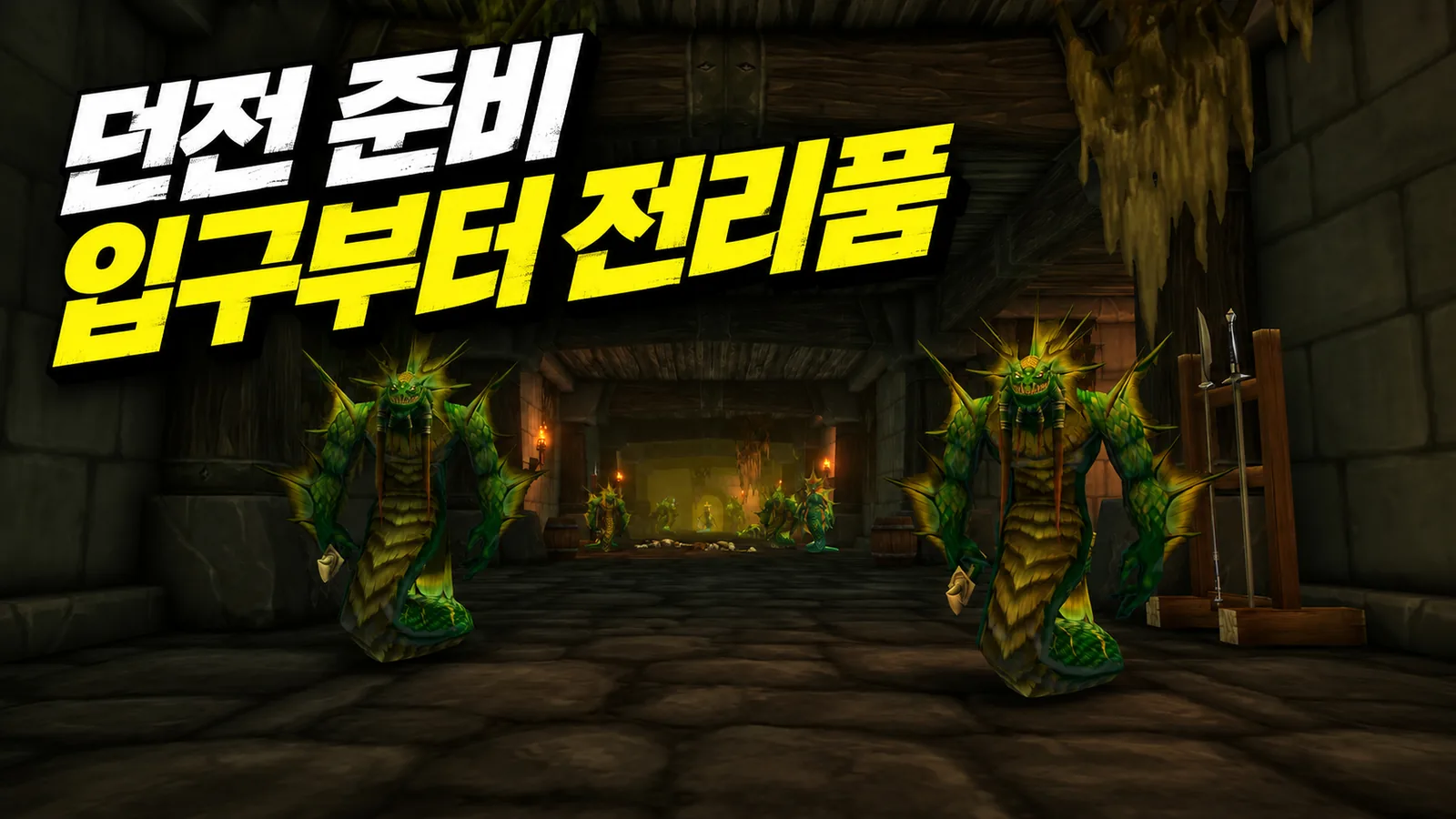
Entrance and recommended-level information lead into quests, maps, and loot. Check which quests you can accept and which boss drops the equipment you want. That gives you a more specific reason to choose a dungeon than simply running the nearest one.
You can also open a progress window from the quick-loot interface. In the configuration shown, it opens automatically on entering a dungeon, and boss positions can be viewed with the map. The value is seeing your next direction and remaining objectives together.
Before the party leaves, check the entrance and quests; inside, follow progress and boss locations; afterward, review loot. If a window blocks your view, resize, move, or close it. More guidance isn't useful if it hides the fight.
Dungeon lists and maps are still being improved. A dungeon being named in the description doesn't establish that every boss location and drop has been fully verified. Use the information provided without adding unconfirmed drop rates or claiming an optimal route.
Adjust cursor trails and loot rolls to suit your screen
Cursor trails can be toggled and their size and effects adjusted. The described automatic setup excludes the lightning trail from its defaults. It may help if you lose your cursor, but you can leave it off if it clashes with combat effects.
The roll window can be moved, resized, and previewed. Move it before grouping if it covers the center of the screen or overlaps chat. The game's Edit Mode also lets you adjust action-bar icon counts and other settings; the automatic layout is only a starting point.
Profession displays cover regional skill information for selected activities such as fishing, mining, and skinning. Show the profession you're currently leveling to help choose a gathering area, rather than displaying every category at once.
Troubleshoot the symptom and the steps that trigger it
Early notes said the ledger could record expenses incorrectly and was being fixed. The 5.238 changelog describes comparing transaction times with actual changes in carried money, and marking totals as confirmed amounts when only the net result of several transactions is known. That documents a processing change, not proof that every transaction error is gone.
Action-bar issues also need to be distinguished. The addon introduced a temporary save-and-restore feature for talent changes, while Blizzard's November 13 hotfix said it fixed action bars resetting on logout for characters with dual talent specialization. A problem after switching talents may have a different trigger from one after logout; it isn't accurate to say dual specialization always still wipes bars.
If something goes wrong, try these steps:
- Update the game and addon suite, then repeat the action that triggered the problem.
- Disable other addons and compare with only the integrated suite enabled.
- Disable every addon, reload the UI, and check whether the symptom remains.
- Include your class, triggering action, enabled addons, and reproduction results with the error report.
If disabling another addon fixes it, you've narrowed down a possible conflict. If the issue survives with everything disabled, investigate game settings or the client too. Addons can leave saved-setting changes behind, so that result alone doesn't prove a game bug.
Some symptoms have specific workarounds. For repeated world-map quest-pin blocking during combat, the 5.238 notes recommend selecting the map's default view and running /reload out of combat. Match the workaround to the symptom before wiping your configuration.
Using the suite well means finding the right information when you need it: directions for the next quest, an item's purpose before selling it, and dungeon details before a run. Learn those three first, then pare back the rest of the UI to fit how you play.
